Viewing Generated Code
How to Set Up
To view the automatically generated code, add the following attribute to your .csproj file:
XML <PropertyGroup>
<EmitCompilerGeneratedFiles> true</EmitCompilerGeneratedFiles>
</PropertyGroup>
Viewing the Files
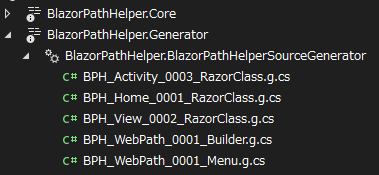
The generated files will appear under Dependencies > Analyzer > BlazorPathHelper.Generator.
For example, if you create a WebPaths.cs file to define a URL builder, a file like the following will be generated:
C# 1
2
3
4
5
6
7
8
9
10
11
12
13
14
15
16
17
18
19
20
21
22
23
24
25
26
27
28
29
30
31
32
33
34
35
36
37
38
39
40 // <auto-generated />
# nullable enable
#pragma warning disable CS8600
#pragma warning disable CS8601
#pragma warning disable CS8602
#pragma warning disable CS8603
#pragma warning disable CS8604
using System ;
using static BlazorPathHelper . BlazorPathHelperUtility ;
namespace Example.MudBlazor ;
public partial class WebPaths
{
/// <summary>
/// Helper class for path building
/// </summary>
public static partial class Helper
{
/// <summary>Build Path String: / </summary>
public static string Home () => "/" ;
/// <summary>Build Path String: /sample1 </summary>
public static string Sample1 () => "/sample1" ;
/// <summary>Build Path String: /sample1/child1 </summary>
public static string Sample1C1 () => "/sample1/child1" ;
/// <summary>Build Path String: /sample1/child2 </summary>
public static string Sample1C2 () => "/sample1/child2" ;
/// <summary>Build Path String: /sample1/child2/child1 </summary>
public static string Sample1C2C1 () => "/sample1/child2/child1" ;
/// <summary>Build Path String: /sample2 </summary>
public static string Sample2 () => "/sample2" ;
/// <summary>Build Path String: /sample2/child1 </summary>
public static string Sample2C1 () => "/sample2/child1" ;
/// <summary>Build Path String: /sample3 </summary>
public static string Sample3 () => "/sample3" ;
/// <summary>Build Path String: /sample3/{value:int} </summary>
public static string Sample3Arg ( int Value )
=> string . Format ( "/sample3/{0}" , ToStringForUrl ( Value ));
}
}
Note
If you open the above file in Visual Studio or a similar tool, and then edit WebPaths.cs, the generated file might not appear to update. In such cases, restarting Visual Studio or the tool should display the updated file correctly.
January 3, 2025
January 3, 2025